
 olprodandsunghyunkang1111
25008bb4e3
olprodandsunghyunkang1111
25008bb4e3
* Localized file check-in by OneLocBuild Task: Build definition ID 13114: Build ID 2492509

* Localized file check-in by OneLocBuild Task: Build definition ID 13114: Build ID 2494365

* Localized file check-in by OneLocBuild Task: Build definition ID 13114: Build ID 2496121

* Localized file check-in by OneLocBuild Task: Build definition ID 13114: Build ID 2509221

* Localized file check-in by OneLocBuild Task: Build definition ID 13114: Build ID 2510680

* Localized file check-in by OneLocBuild Task: Build definition ID 13114: Build ID 2511934

* Localized file check-in by OneLocBuild Task: Build definition ID 13114: Build ID 2514793

* Localized file check-in by OneLocBuild Task: Build definition ID 13114: Build ID 2516553

* Localized file check-in by OneLocBuild Task: Build definition ID 13114: Build ID 2517913

* Localized file check-in by OneLocBuild Task: Build definition ID 13114: Build ID 2518008

* Localized file check-in by OneLocBuild Task: Build definition ID 13114: Build ID 2519279

* Localized file check-in by OneLocBuild Task: Build definition ID 13114: Build ID 2520710

---------

Co-authored-by: sunghyunkang1111 <[email protected]>
Cosmos DB Explorer
UI for Azure Cosmos DB. Powers the Azure Portal, https://cosmos.azure.com/, and the Cosmos DB Emulator

Getting Started
npm installnpm run build
Developing
Watch mode
Run npm start to start the development server and automatically rebuild on changes
Hosted Development (https://cosmos.azure.com)
- Visit:
https://localhost:1234/hostedExplorer.html - The default webpack dev server configuration will proxy requests to the production portal backend:
https://cdb-ms-mpac-pbe.cosmos.azure.com. This will allow you to use production connection strings on your local machine.
Emulator Development
- Start the Cosmos Emulator
- Visit: https://localhost:1234/index.html
Setting up a Remote Emulator
The Cosmos emulator currently only runs in Windows environments. You can still develop on a non-Windows machine by setting up an emulator on a windows box and exposing its ports publicly:
-
Expose these ports publicly: 8081, 8900, 8979, 10250, 10251, 10252, 10253, 10254, 10255, 10256
-
Download and install the emulator: https://docs.microsoft.com/en-us/azure/cosmos-db/local-emulator
-
Start the emulator from PowerShell:
> cd C:/

> .\CosmosDB.Emulator.exe -AllowNetworkAccess -Key="<EMULATOR MASTER KEY>"
Portal Development
- Visit: https://ms.portal.azure.com/?dataExplorerSource=https%3A%2F%2Flocalhost%3A1234%2Fexplorer.html
- You may have to manually visit https://localhost:1234/explorer.html first and click through any SSL certificate warnings
Testing
Unit Tests
Unit tests are located adjacent to the code under test and run with Jest:
npm run test
End to End CI Tests
Jest and Puppeteer are used for end to end browser based tests and are contained in test/. To run these tests locally:
- Copy .env.example to .env
- Update the values in .env including your local data explorer endpoint (ask a teammate/codeowner for help with .env values)
- Make sure all packages are installed
npm install - Run the server
npm run startand wait for it to start - Run
npm run test:e2e
Releasing
We generally adhere to the release strategy documented by the Azure SDK Guidelines. Most releases should happen from the master branch. If master contains commits that cannot be released, you may create a release from a release/ or hotfix/ branch. See linked documentation for more details.
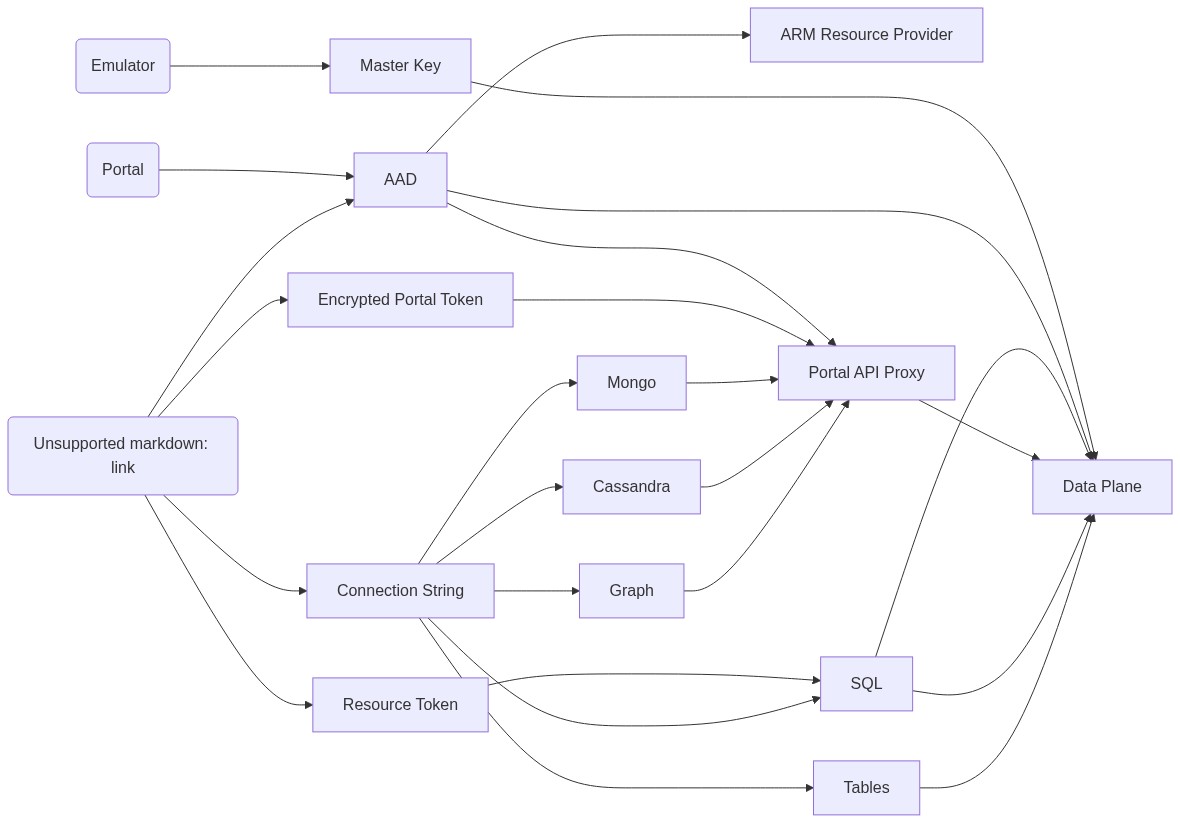
Architecture
Contributing
Please read the contribution guidelines.