

 2c31ec2a8d
* First dark theme commits for command bar

* Updated theme on sidebar

* Updated tabs, sidebar, splash screen

* settings theme changes

* Dark theme applied to Monaco editor

* Dark theme to stored procedures

* Fixed sidebar scroll

* Updated scroll issue in sidebar

* Command bar items fixed

* Fixed lint errors

* fixed lint errors

* settings side panel fixed

* Second last iteration for css

* Fixed all the issues of css

* Updated the theme icon for now on DE to change the theme from portal/DE itself

* Formatting issue resolved

* Remove CloudShellTerminalComponent changes - revert to master version

* Fixed test issue

* Fixed formatting issue

* Fix tests: update snapshots and revert xterm imports for compatibility

* Fix xterm imports in CloudShellTerminalComponent to use @xterm packages

* Fix Cloud Shell component imports for compatibility

* Update test snapshots

* Fix xterm package consistency across all CloudShell components

* Fix TypeScript compilation errors in CloudShell components and query Documents

- Standardized xterm package imports across CloudShell components to use legacy 'xterm' package
- Fixed Terminal type compatibility issues in CommonUtils.tsx
- Added type casting for enableQueryControl property in queryDocuments.ts to handle Azure Cosmos SDK interface limitations
- Applied code formatting to ensure consistency

* Update failing snapshot tests

- Updated TreeNodeComponent snapshot tests for loading states
- Updated ThroughputInputAutoPilotV3Component snapshots for number formatting changes (10,00,000 -> 1,000,000)
- All snapshot tests now pass

* Fixed test issue

* Fixed test issue

* Updated the buttons for theme

* Updated the Theme changes based on portal theme changes

* Updated review comments

* Updated the duplicate code and fixed the fabric react error

* Few places styling added and resolving few comments

* Fixed errors

* Fixed comments

* Fixed comments

* Fixed comments

* Fixed full text policy issue for mongoru accounts

* Resolved comments for class Name and few others

* Added css for homepage in ru accounts

* Final commit with all the feedback issues resolved

* Lint error resolved

* Updated the review comments and few Ui issues

* Resolved review comments and changed header bg and active state color

* Moved svg code to different file and imported

* css fixed for the hpome page boxed for ru account

* Lint errors

* Fixed boxes issue in ru accounts

* Handled the initial theme from the portal

* Updated snap

* Update snapshots for TreeNodeComponent and CreateCopyJobScreensProvider tests

* Fix duplicate DataExplorerRoot test id causing Playwright strict mode violation

* Fix locale-dependent number formatting in ThroughputInputAutoPilotV3Component

---------

Co-authored-by: Sakshi Gupta <[email protected]>
Co-authored-by: Sakshi Gupta <[email protected]>
Cosmos DB Explorer
UI for Azure Cosmos DB. Powers the Azure Portal, https://cosmos.azure.com/, and the Cosmos DB Emulator

Getting Started
npm installnpm run build
Developing
Watch mode
Run npm start to start the development server and automatically rebuild on changes
Hosted Development (https://cosmos.azure.com)
- Visit:
https://localhost:1234/hostedExplorer.html - The default webpack dev server configuration will proxy requests to the production portal backend:
https://cdb-ms-mpac-pbe.cosmos.azure.com. This will allow you to use production connection strings on your local machine.
Emulator Development
- Start the Cosmos Emulator
- Visit: https://localhost:1234/index.html
Setting up a Remote Emulator
The Cosmos emulator currently only runs in Windows environments. You can still develop on a non-Windows machine by setting up an emulator on a windows box and exposing its ports publicly:
-
Expose these ports publicly: 8081, 8900, 8979, 10250, 10251, 10252, 10253, 10254, 10255, 10256
-
Download and install the emulator: https://docs.microsoft.com/en-us/azure/cosmos-db/local-emulator
-
Start the emulator from PowerShell:
> cd C:/

> .\CosmosDB.Emulator.exe -AllowNetworkAccess -Key="<EMULATOR MASTER KEY>"
Portal Development
- Visit: https://ms.portal.azure.com/?dataExplorerSource=https%3A%2F%2Flocalhost%3A1234%2Fexplorer.html
- You may have to manually visit https://localhost:1234/explorer.html first and click through any SSL certificate warnings
Testing
Unit Tests
Unit tests are located adjacent to the code under test and run with Jest:
npm run test
End to End CI Tests
Jest and Puppeteer are used for end to end browser based tests and are contained in test/. To run these tests locally:
- Copy .env.example to .env
- Update the values in .env including your local data explorer endpoint (ask a teammate/codeowner for help with .env values)
- Make sure all packages are installed
npm install - Run the server
npm run startand wait for it to start - Run
npm run test:e2e
Releasing
We generally adhere to the release strategy documented by the Azure SDK Guidelines. Most releases should happen from the master branch. If master contains commits that cannot be released, you may create a release from a release/ or hotfix/ branch. See linked documentation for more details.
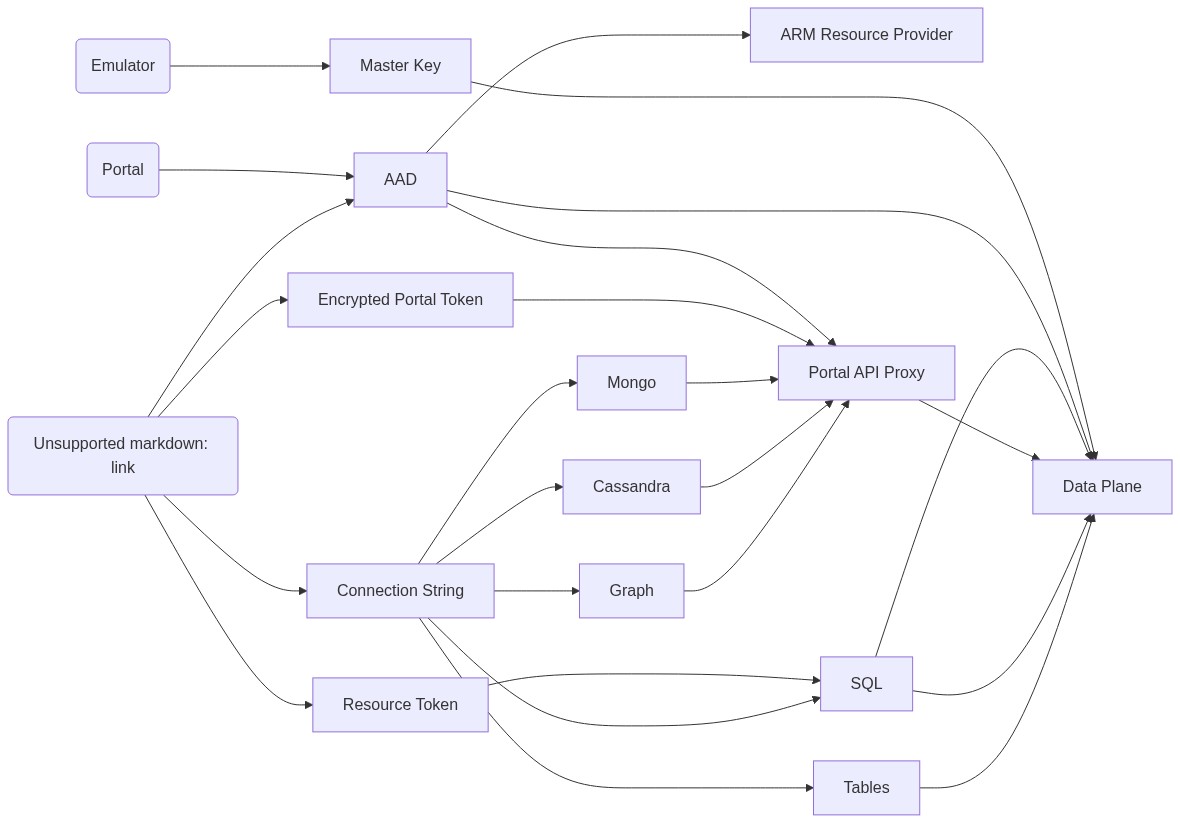
Architecture
Contributing
Please read the contribution guidelines.