 Mike Krüger
43fe8a002b
Mike Krüger
43fe8a002b
* Add Cosmos DB Shell (NoSQL) support to Cloud Shell

Adds Cosmos DB (NoSQL) support to the Cloud Shell experience and wires up authentication for RBAC / local-auth-disabled accounts:

- Enable the Open Cosmos DB Shell button behind the enableCloudShell feature flag.
- Bootstrap .NET SDK 10 in Cloud Shell before installing the CosmosDBShell tool.
- Force gateway connection mode and add --verbose to surface connection errors.
- Select Entra ID vs account-key auth via isCloudShellEntraAuthEnabled (covers dataplane RBAC and disableLocalAuth accounts).
- Acquire a data-plane-scoped Entra token on demand when no cached aadToken exists, and omit --connect-tenant so a missing token falls through to DefaultAzureCredential (Cloud Shell az session) instead of interactive/device-code auth.

* Fix popup_window_error in CosmosDB Cloud Shell Entra auth

Acquiring an Entra token on demand via acquireMsalTokenForAccount triggered a browser loginPopup (even in silent mode when no MSAL account was cached), which fails with popup_window_error inside the hosted Cloud Shell context. getKey now returns the cached userContext.aadToken when present, or an empty string otherwise. With no token exported, the CosmosDBShell tool falls through to DefaultAzureCredential, which uses the Cloud Shell's signed-in az session.

* Force --connect-azure-cli whenever no credential env var is exported

In Azure Cloud Shell, DefaultAzureCredential tries ManagedIdentityCredential first, which cannot mint a token for the *.documents.azure.com audience (AudienceNotSupported). Force AzureCliCredential via --connect-azure-cli whenever no key/token env var is exported, covering both the Entra-no-token and key-auth-empty-key cases. Also auto-update the CosmosDBShell tool so cached installs pick up the new flag.

* Silently mint a Cosmos data-plane token for the Cloud Shell Entra path

A disableLocalAuth Cosmos account whose Data Explorer session is still in key mode has no cached userContext.aadToken, and the ephemeral Cloud Shell can obtain a Cosmos token from neither its managed identity (AudienceNotSupported for *.documents.azure.com) nor its az session (not logged in). Mint a Cosmos-scoped token in the browser and export it via COSMOSDB_SHELL_TOKEN. The acquisition is guarded on an existing cached MSAL account so it can never trigger an interactive popup, and any failure returns an empty string so the tool falls back to --connect-azure-cli.

* Only accept Y/N at the Cloud Shell consent prompt

askConfirmation now ignores any key that is not Y or N instead of treating every non-Y key as a decline, so an accidental keypress no longer aborts the Cloud Shell consent flow. Also add diagnostic warnings on the Cloud Shell token path so the browser console reveals whether the silent Cosmos token mint was skipped (no cached MSAL account) or returned empty.

* Use device-code auth when Cloud Shell has no token

* Pass the Data Explorer credential to the Cosmos DB shell instead of signing in interactively

Azure Cloud Shell cannot authenticate to Cosmos DB on its own: its managed identity
is rejected with AudienceNotSupported for the *.documents.azure.com audience, its az
session is not signed in, and neither the interactive browser nor the device-code flow
is usable from the embedded terminal.

Resolve the credential in Data Explorer and hand it to the shell out-of-band:
- getCosmosDBShellCredential() returns an Entra ID data-plane token (cached aadToken,
  or one minted silently only when an MSAL account already exists so it can never
  trigger a popup), falling back to the account master key unless local auth is
  disabled. It reports which kind it resolved so the correct env var is exported.
- CosmosDBShellHandler exports COSMOSDB_SHELL_TOKEN or COSMOSDB_SHELL_ACCOUNT_KEY and
  drops every credential flag, so the tool always lands on a terminal, non-interactive
  step of its credential chain.
- When nothing can be resolved, print actionable guidance instead of launching the
  tool with no credential.

* Fix TS7011 in ShellTypeFactory tests by typing the mocked getAllAccounts

The empty array literal in the getMsalInstance mock had no contextual type, so
tsc inferred an implicit any[] return under noImplicitAny. Route every mock
through a typed mockMsalAccounts helper.

* Reuse DE's cached credential for Cosmos DB Shell; add read-only key fallback

* Deliver Cosmos DB Shell key as a full connection string; harden key resolution

* Surface the specific reason a Cosmos DB Shell credential could not be resolved

* Deliver Cosmos DB Shell credential inline (export+connect on one line), mirroring Mongo handler

* Log which Cosmos DB Shell credential kind was resolved for debugging

* Increase ARM timeout for Cloud Shell provisioning calls to avoid spurious abort errors

* Gate Cosmos DB Shell button behind enableCosmosDBShell feature flag

* Fix TS2741: add missing enableCosmosDBShell to Features test fixture
Cosmos DB Explorer
UI for Azure Cosmos DB. Powers the Azure Portal, https://cosmos.azure.com/, and the Cosmos DB Emulator

Getting Started
npm installnpm run build
Developing
Watch mode
Run npm start to start the development server and automatically rebuild on changes
Hosted Development (https://cosmos.azure.com)
- Visit:
https://localhost:1234/hostedExplorer.html - The default webpack dev server configuration will proxy requests to the production portal backend:
https://cdb-ms-mpac-pbe.cosmos.azure.com. This will allow you to use production connection strings on your local machine.
Emulator Development
- Start the Cosmos Emulator
- Visit: https://localhost:1234/index.html
Setting up a Remote Emulator
The Cosmos emulator currently only runs in Windows environments. You can still develop on a non-Windows machine by setting up an emulator on a windows box and exposing its ports publicly:
-
Expose these ports publicly: 8081, 8900, 8979, 10250, 10251, 10252, 10253, 10254, 10255, 10256
-
Download and install the emulator: https://docs.microsoft.com/en-us/azure/cosmos-db/local-emulator
-
Start the emulator from PowerShell:
> cd C:/

> .\CosmosDB.Emulator.exe -AllowNetworkAccess -Key="<EMULATOR MASTER KEY>"
Portal Development
- Visit: https://ms.portal.azure.com/?dataExplorerSource=https%3A%2F%2Flocalhost%3A1234%2Fexplorer.html
- You may have to manually visit https://localhost:1234/explorer.html first and click through any SSL certificate warnings
Testing
Unit Tests
Unit tests are located adjacent to the code under test and run with Jest:
npm run test
End to End CI Tests
Jest and Puppeteer are used for end to end browser based tests and are contained in test/. To run these tests locally:
- Copy .env.example to .env
- Update the values in .env including your local data explorer endpoint (ask a teammate/codeowner for help with .env values)
- Make sure all packages are installed
npm install - Run the server
npm run startand wait for it to start - Run
npm run test:e2e
Releasing
We generally adhere to the release strategy documented by the Azure SDK Guidelines. Most releases should happen from the master branch. If master contains commits that cannot be released, you may create a release from a release/ or hotfix/ branch. See linked documentation for more details.
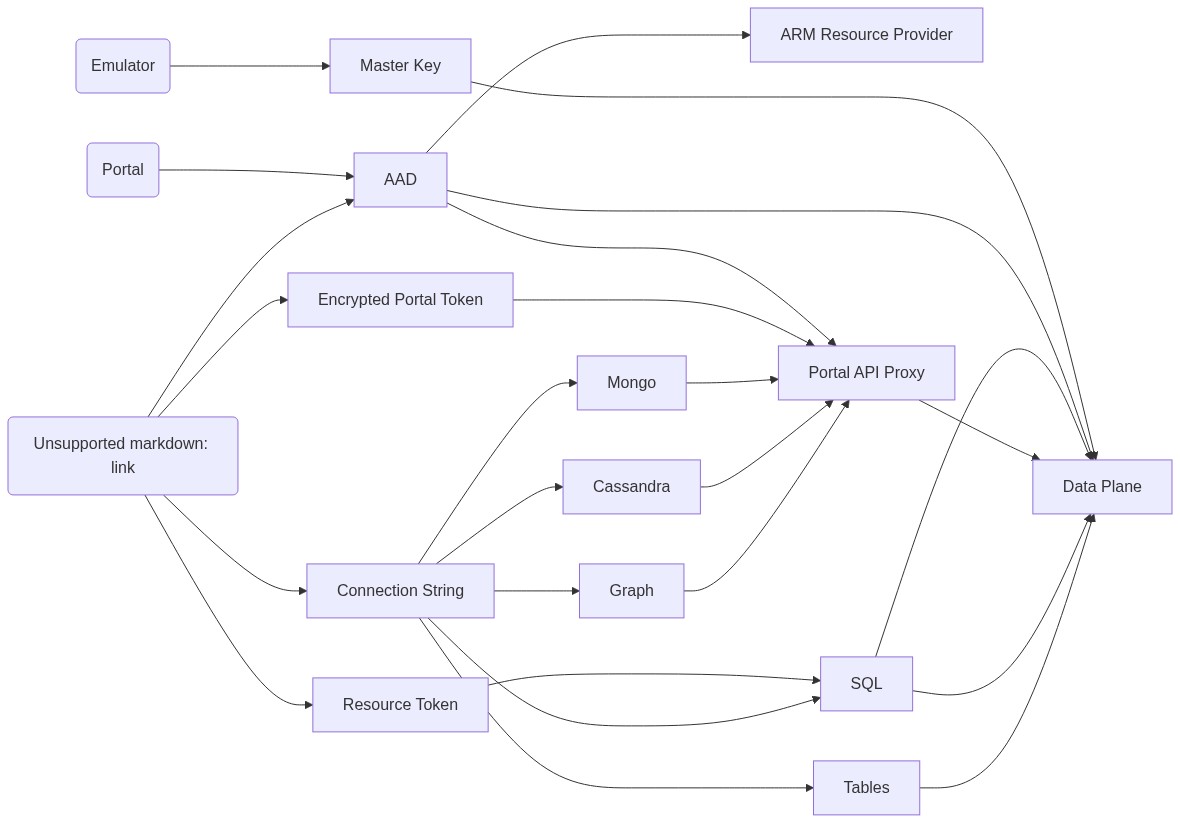
Architecture
Contributing
Please read the contribution guidelines.