 Dmitrii Shilov
94fe5648e5
Dmitrii Shilov
94fe5648e5
The ready signal was an incrementing counter, so its correctness rested on an
argument about scale rather than a property of the value. Overflow was not
reachable in a page session — nine quadrillion refreshes — and the failure mode
was fail-closed, leaving the phase open rather than reporting a load as healthy.
It was still a bound that had to be argued rather than one that could not be
exceeded.

The signal is now a fresh object published per load and compared by reference.
There is no value to exhaust or wrap, and the comparison is identity rather than
ordering, so a store reset cannot leave the consumer permanently ahead of the
producer either.

Related: IcM 865096261
Cosmos DB Explorer
UI for Azure Cosmos DB. Powers the Azure Portal, https://cosmos.azure.com/, and the Cosmos DB Emulator

Getting Started
- Install Node.js 22.x.
npm installnpm run build
Developing
Watch mode
Run npm start to start the development server and automatically rebuild on changes
Hosted Development (https://cosmos.azure.com)
- Visit:
https://localhost:1234/hostedExplorer.html - The default webpack dev server configuration will proxy requests to the production portal backend:
https://cdb-ms-mpac-pbe.cosmos.azure.com. This will allow you to use production connection strings on your local machine.
Emulator Development
- Start the Cosmos Emulator
- Visit: https://localhost:1234/index.html
Setting up a Remote Emulator
The Cosmos emulator currently only runs in Windows environments. You can still develop on a non-Windows machine by setting up an emulator on a windows box and exposing its ports publicly:
-
Expose these ports publicly: 8081, 8900, 8979, 10250, 10251, 10252, 10253, 10254, 10255, 10256
-
Download and install the emulator: https://docs.microsoft.com/en-us/azure/cosmos-db/local-emulator
-
Start the emulator from PowerShell:
> cd C:/

> .\CosmosDB.Emulator.exe -AllowNetworkAccess -Key="<EMULATOR MASTER KEY>"
Portal Development
- Visit: https://ms.portal.azure.com/?dataExplorerSource=https%3A%2F%2Flocalhost%3A1234%2Fexplorer.html
- You may have to manually visit https://localhost:1234/explorer.html first and click through any SSL certificate warnings
Testing
Unit Tests
Unit tests are located adjacent to the code under test and run with Jest:
npm run test
End to End CI Tests
Jest and Puppeteer are used for end to end browser based tests and are contained in test/. To run these tests locally:
- Copy .env.example to .env
- Update the values in .env including your local data explorer endpoint (ask a teammate/codeowner for help with .env values)
- Make sure all packages are installed
npm install - Run the server
npm run startand wait for it to start - Run
npm run test:e2e
Releasing
We generally adhere to the release strategy documented by the Azure SDK Guidelines. Most releases should happen from the master branch. If master contains commits that cannot be released, you may create a release from a release/ or hotfix/ branch. See linked documentation for more details.
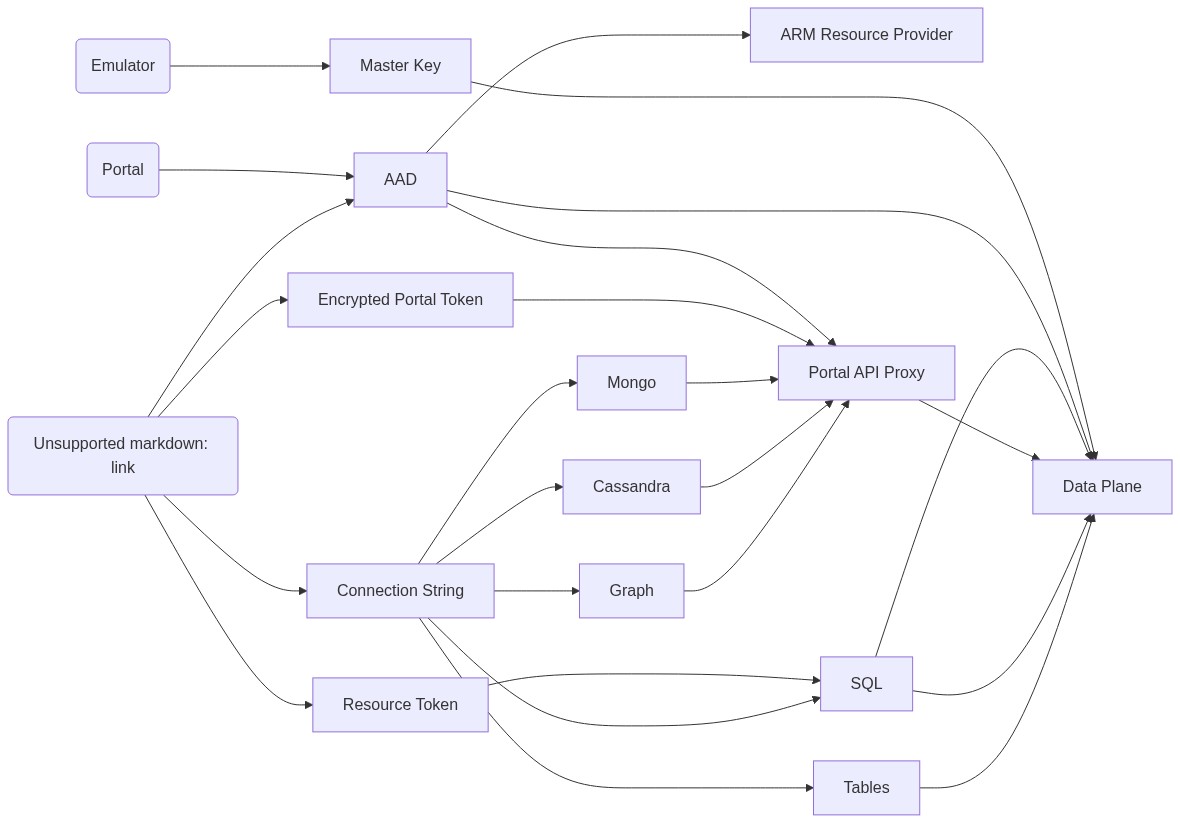
Architecture
Contributing
Please read the contribution guidelines.